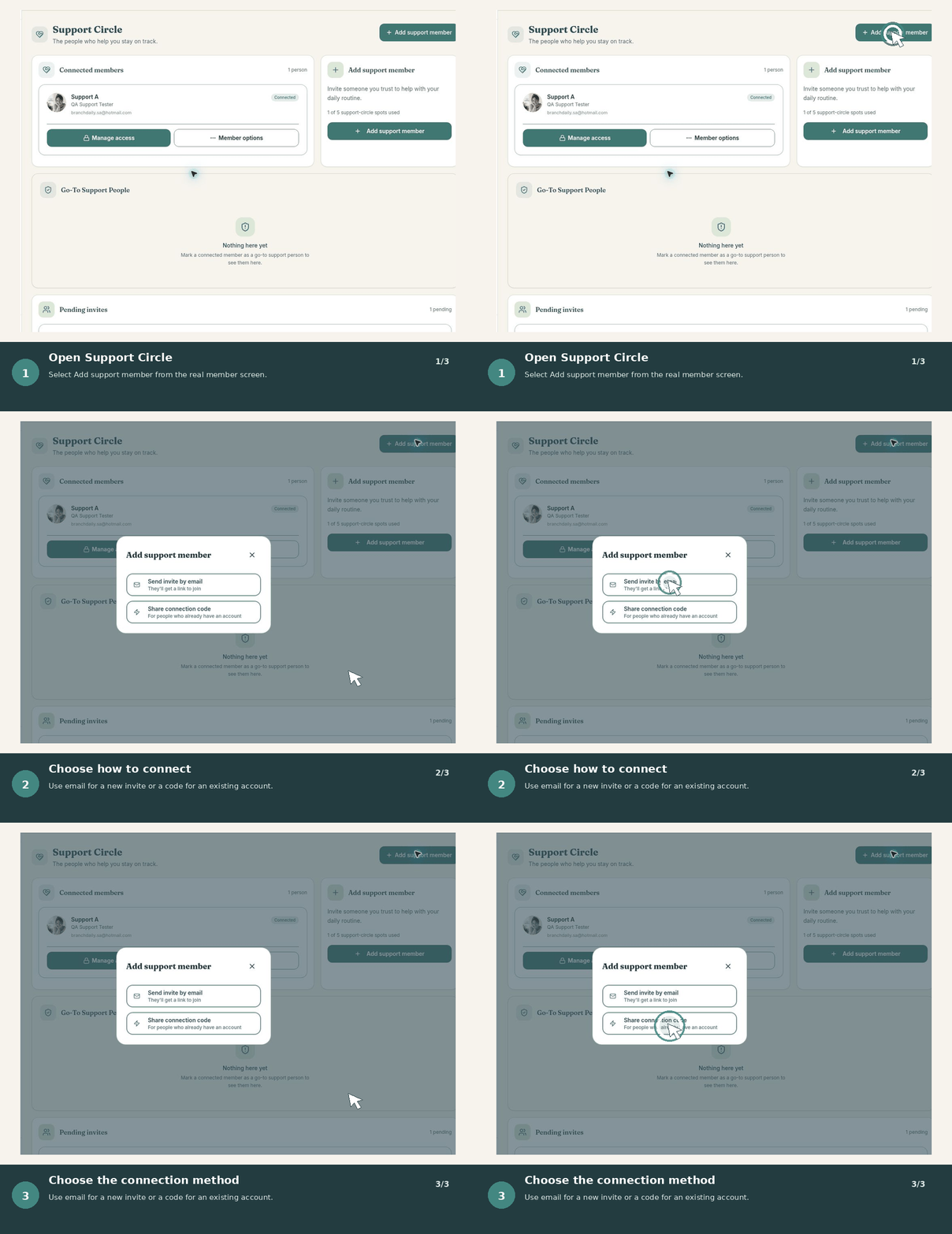
What a Support Circle is
A Support Circle connects you with trusted people you choose. Each person’s access is controlled separately, so support can match the relationship and your preferences.
Invite a support member
- Open your Support Circle.
- Choose Invite someone.
- Select email, invitation link, or connection code.
- Send the invitation only to the person you intend to invite.
- Review their permissions after they connect.
Accept an invitation
Open the invitation link or enter the connection code while signed into the correct BranchDaily account. Review who invited you and what role you are accepting before continuing.
Manage a connection
Open the person’s connection details to review permissions, change access, or remove them. Permission changes should take effect for that connection without affecting other members.
Suggest-only support
A support member can suggest a change, but you review it before it changes your information.
Trusted Helper access
When enabled, a trusted helper may be allowed to make selected changes directly. Give this access only to someone you trust.
Remove a support member
Open the connection, choose the removal option, and confirm. Removing access stops future access through that connection; review any information or changes already shared if you have concerns.